Granting trackpad & keyboard permissions on macOS
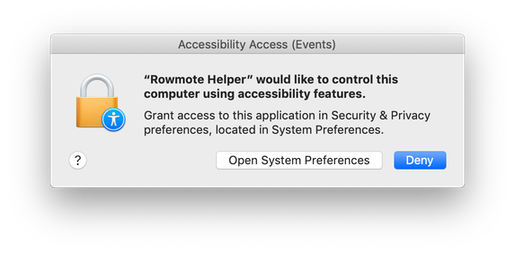
On macOS Mojave and later, you must grant Rowmote Helper access to two system features before trackpad and keyboard control will work. You’ll be asked to do so when you first connect with Rowmote; if you don’t grant access at that time, you can do so manually:
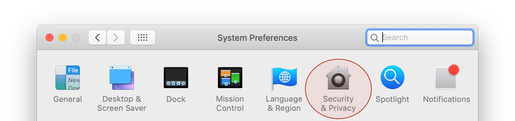
1. Open System Settings on your Mac (called System Preferences before macOS Ventura) and select Privacy & Security (previously Security & Privacy).
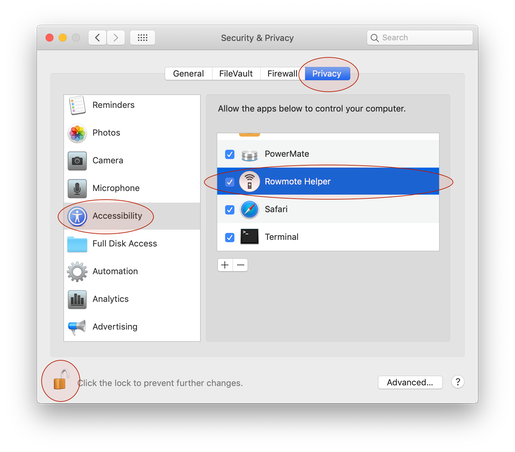
2. Select the Accessibility section. Find Rowmote Helper in the list and enable it. (On older macOS, first click the lock in the corner to authorize changes.)
3. Next, select the Automation section. Enable System Events beneath Rowmote Helper.
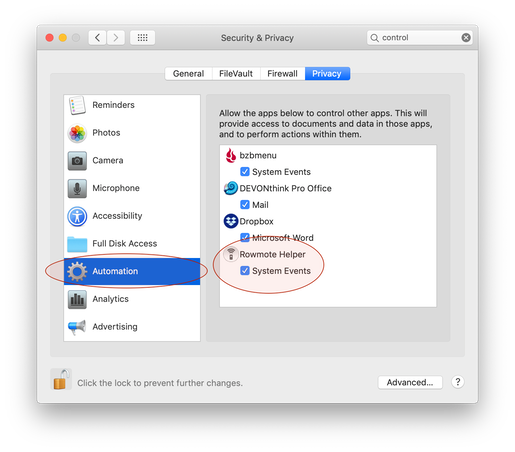
The screenshots above show the pre-Ventura System Preferences layout; on current macOS the same sections live in System Settings › Privacy & Security.